Read BIOS with CH341A Programmer
The CH341A is an affordable and efficient tool for reading or programming a BIOS from an EEPROM chip. This guide shows you step by step how to safely read and back up your BIOS chip.
Required materials
- CH341A programmer
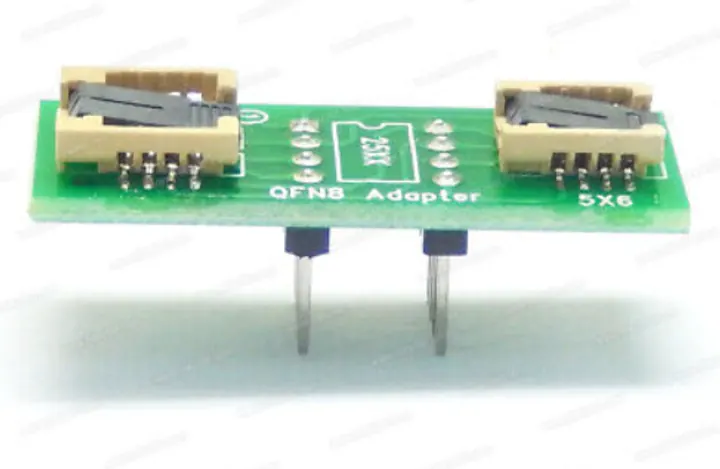
- EEPROM adapter or WSON-8 adapter (if necessary)
- Software, e.g. NeoProgrammer
- A suitable programming cable or SOIC-8 clip
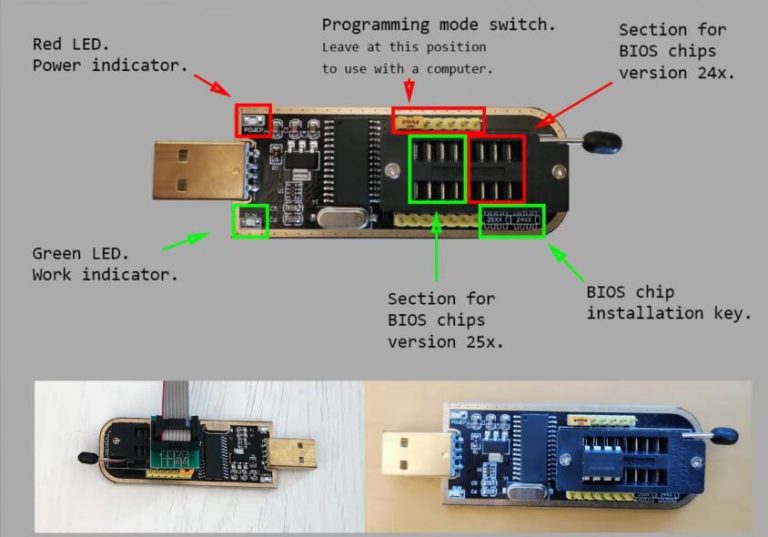
Step-by-step guide
- Connect the CH341A programmer: Connect the programmer to your computer via USB.
- Locate the BIOS chip: Find the BIOS chip on the motherboard – usually an 8-pin chip (SOP-8, or flat WSON-8).
- Connect the chip: Connect the chip to the programmer using an adapter or clip. Mind pin 1 (dot marking)!
- Start the software: Open the software (e.g. NeoProgrammer) and select the correct chip type.
- Read the chip: Click “Read” to extract the contents – ideally twice, then compare both files.
- Save a backup: Save the dump as a backup on your computer before changing anything.
Important: select the correct chip type and don't change settings you don't understand – otherwise you can damage the chip or hardware. Always make a backup first!
Pay attention to the pinout!
The marked area is meant for EEPROMs, i.e. your BIOS chip. Insert the chip there if it has pins, or attach the clip instead. Working with a clip is often fiddly – that's why I usually desolder the chips completely for a secure connection.
Flat chips (WSON-8)
If you have a flat chip such as WSON-8, get a matching adapter. Again, desoldering the chip properly is the most reliable way to read or program it.
My hardware
I use professional hardware – a bit more expensive, but up to ten times faster:
To get started: CH341A programmer on Amazon · WSON-8 adapter on Amazon
Video: remove Dell BIOS password with the 8FC8 suffix
What it could look like – Dell Latitude 7400
Rather have it done?
If you're not confident, I'll do it for you – safely via hardware flash, from €45 plus shipping. More: Remove BIOS password Dell 8FC8.